Here’s a situation you’ve probably run into: you’re pasting a title into a document, or fixing a heading for a website, and you notice half of it is in random capital letters because you copied it from somewhere else, or maybe you left Caps Lock on without realizing it for an entire paragraph. Retyping the whole thing feels like a waste of time for something so small — and yet fixing it manually, letter by letter, is genuinely annoying.
This is exactly the kind of small, everyday annoyance that a text case converter solves in about two seconds. It’s one of those tools nobody thinks about until they need it, and then they wonder how they ever managed without it.
What Exactly Is a Text Case Converter?
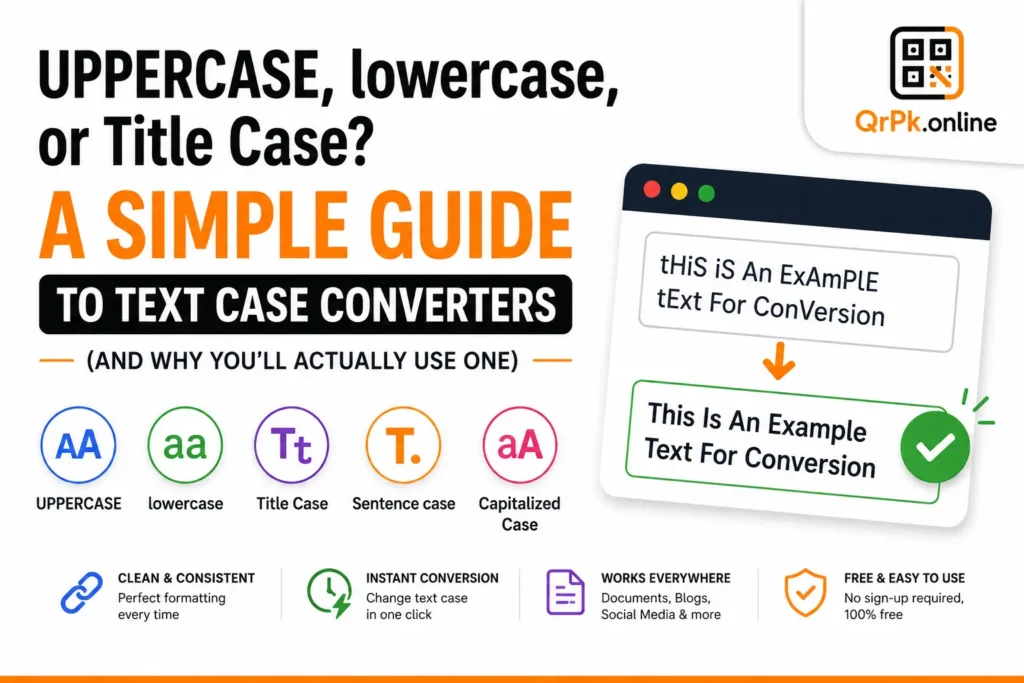
A text case converter is a simple tool that takes whatever text you paste in and instantly changes its capitalization style. Instead of manually retyping or fixing each letter, you paste your text once and choose the format you want — and it’s done immediately.
The most common formats are:
- UPPERCASE — every letter capitalized. Used for emphasis, headers, or acronyms.
- lowercase — every letter in small case. Common in casual writing, usernames, or stylistic branding.
- Title Case — the First Letter Of Each Main Word Is Capitalized. Standard for blog titles, headlines, and book titles.
- Sentence case — Only the first letter of the sentence is capitalized, like normal writing. Used in body text and everyday sentences.
- Capitalized Case or alternating styles — used less often, but handy for specific formatting or stylistic needs, like social media captions or creative text effects.
Who Actually Uses These, and Why
It’s easy to assume this is a niche tool, but the truth is it quietly gets used across a surprising number of everyday situations.
Students and writers often paste content from PDFs, old notes, or scanned documents where formatting gets messy — sentences might be stuck in all caps, or capitalization breaks randomly mid-paragraph. A quick case conversion fixes it instantly rather than requiring a manual retype.
Content creators and bloggers need consistent title formatting. If you’re publishing article headlines and want them all to follow proper Title Case for SEO consistency and a professional look, converting text automatically saves a lot of tedious manual editing, especially when working with dozens of post titles.
Social media managers sometimes want captions in all lowercase for a specific aesthetic, or in alternating case for stylistic emphasis. Doing this by hand for every single post gets old fast.
Developers and data-entry workers frequently deal with text pulled from spreadsheets, forms, or databases where capitalization is inconsistent — names in all caps, addresses in random casing, and so on. A quick conversion tool standardizes everything before it goes live anywhere.
Anyone who’s ever left Caps Lock on by accident and typed an entire paragraph in the wrong case. We’ve all been there, and retyping isn’t necessary anymore.
Why This Matters More Than It Seems
Capitalization isn’t just a cosmetic detail — it actually affects how professional and readable your content looks. A resume with inconsistent capitalization in job titles looks careless, even if the content itself is strong. A blog title that’s randomly capitalized looks unpolished compared to one that follows clean Title Case formatting. Even something as simple as an email subject line in all lowercase can come across as more casual, while the same line in Sentence case feels more formal and intentional.
In other words, capitalization sends a subtle signal about attention to detail — and getting it right consistently, across dozens or hundreds of pieces of text, isn’t realistic to do by hand every time.
How to Use a Text Case Converter
There’s really nothing complicated about it:
- Paste or type your text into the tool.
- Choose the case format you want — uppercase, lowercase, title case, or sentence case.
- Copy the converted result and use it wherever you need.
That’s it. No downloads, no formatting software, no manual retyping. It works for a single sentence just as easily as it works for a full paragraph or a list of titles.
If you want to try it yourself, our free text case converter tool handles all the common formats instantly, right in your browser, with no sign-up needed.
A Few Practical Tips
- When writing blog titles or headlines, Title Case is generally the safest, most professional-looking default for English content.
- For body text and normal paragraphs, Sentence case is standard and easiest to read.
- Avoid using all UPPERCASE for large blocks of text — beyond looking like shouting, it’s also genuinely harder for readers to scan quickly, since our brains rely partly on the shape of mixed-case words to read fast.
- If you’re preparing text for a spreadsheet or database, consistent casing (like converting names to Title Case) makes sorting and searching much more reliable later on.
Frequently Asked Questions
What’s the difference between Title Case and Capitalized Case? Title Case typically capitalizes major words while keeping small connecting words like “and,” “of,” or “the” lowercase (unless they start the sentence). Capitalized Case simply capitalizes the first letter of every word, regardless of its role in the sentence.
Can a text case converter fix grammar or spelling too? No — a case converter only changes capitalization, not spelling, grammar, or punctuation. It’s purely a formatting tool.
Is it safe to paste sensitive text into an online case converter? Most simple, browser-based converters process text locally without saving or transmitting it anywhere, but as a general rule, avoid pasting highly sensitive personal information into any online tool unless you’re certain of how it handles data.
Why does my pasted text sometimes come in all caps unexpectedly? This usually happens when copying from PDFs, scanned documents, or websites that use CSS styling to visually display text in uppercase, even though the underlying text isn’t actually written that way. A case converter fixes this instantly without needing to know the cause.
Final Thought
It’s a small tool, but that’s exactly the point — it solves a small, recurring annoyance so well that once you’ve used it, you’ll find yourself reaching for it more often than you’d expect. Whether you’re cleaning up an old document, formatting blog titles, or just fixing a paragraph you accidentally typed in all caps, a text case converter turns a mildly irritating five-minute task into a two-second fix.