Quick answer: To create a QR code menu, upload your menu as a PDF or webpage somewhere online (like Google Drive or your website), copy that link, and paste it into a free QR code generator. Print the resulting code on your tables, and customers can scan it with their phone camera to view your menu instantly — no app required.
QR code menus went from a pandemic-era necessity to a permanent fixture in restaurants and cafés everywhere, and for good reason. They’re cheaper to maintain than reprinting physical menus every time a price or dish changes, and most customers are now completely comfortable scanning a code without needing instructions. Here’s exactly how to set one up properly.
Why Restaurants Are Sticking With QR Menus
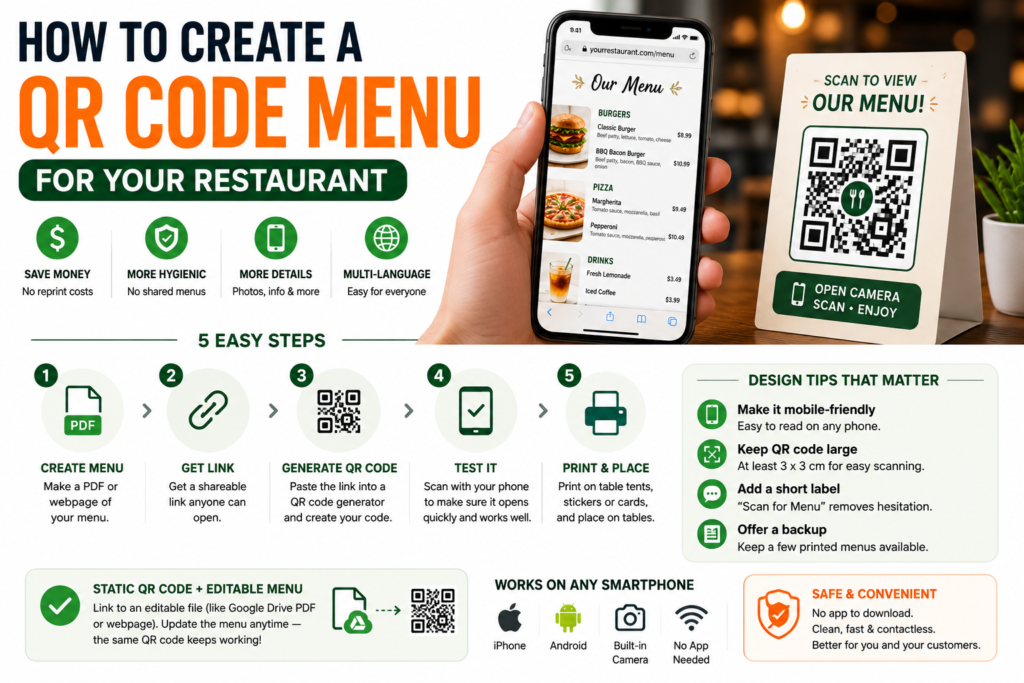
No reprinting costs when prices or dishes change. Physical menus are expensive to reprint every time you adjust a price, add a seasonal item, or run out of an ingredient permanently. A QR code menu can be updated instantly by editing the linked document — the printed code on the table never has to change.
Cleaner, more hygienic tables. Physical menus get passed between hundreds of hands and rarely get cleaned as often as they should. A QR code eliminates that shared surface entirely.
Room for more detail than a printed menu allows. A physical menu is limited by page space, but a digital menu can include full descriptions, photos of dishes, allergen information, and even videos, without needing to cram everything onto a card.
Easy multi-language support. If you serve a diverse customer base, a digital menu can offer a simple language toggle — something almost impossible to do cleanly on a printed card.
Step-by-Step: Building Your QR Menu
Step 1: Create your digital menu. This can be as simple as a well-formatted PDF with your dishes, prices, and descriptions, or a dedicated page on your restaurant’s website if you have one. If you don’t have a website, a clean PDF hosted on Google Drive (set to “anyone with the link can view”) works perfectly fine and costs nothing.
Step 2: Get a shareable link. Whether it’s a Google Drive PDF or a website page, make sure you have a direct link that opens the menu without requiring a login or extra steps.
Step 3: Generate the QR code. Paste that link into a free QR code generator and generate your code instantly.
Step 4: Test it yourself before printing anything. Scan the code with your own phone first. Confirm it opens quickly, displays properly on a phone screen, and doesn’t require zooming or awkward scrolling to read.
Step 5: Print and place the code. Add the QR code to table tents, stickers, or printed cards on each table, ideally alongside a short instruction like “Scan to view menu” for anyone unfamiliar with the process.
Design Tips That Actually Improve the Customer Experience
Make sure the menu is mobile-friendly. This is the single most important detail, and the one most commonly overlooked. If your “digital menu” is just a scanned photo of your printed menu, customers will be squinting and pinch-zooming constantly. Format it specifically to be readable on a phone screen — larger text, clear sections, no tiny fonts.
Keep the QR code large enough to scan easily. A code smaller than roughly 3 x 3 cm on a table can be hard to focus a camera on, especially in dim restaurant lighting. Err on the larger side.
Add a short label near the code. Even though QR scanning is common now, a simple “Scan for Menu” line removes any hesitation from customers who aren’t sure what the code is for.
Consider offering a backup. Some restaurants keep a few printed menus available on request, for customers who prefer not to use their phone or don’t have one handy — a small courtesy that costs little but avoids frustrating anyone.
Should You Use a Static or Dynamic QR Code for Your Menu?
For a restaurant menu specifically, it’s usually smarter to link to a document or webpage you can edit directly (like a Google Drive PDF you update whenever needed), rather than relying on a dynamic QR code service. This way, your printed QR code never needs to change — only the content behind the link does. You update the menu file whenever prices or dishes change, and the same printed code on your tables continues working correctly, indefinitely, at no ongoing cost.
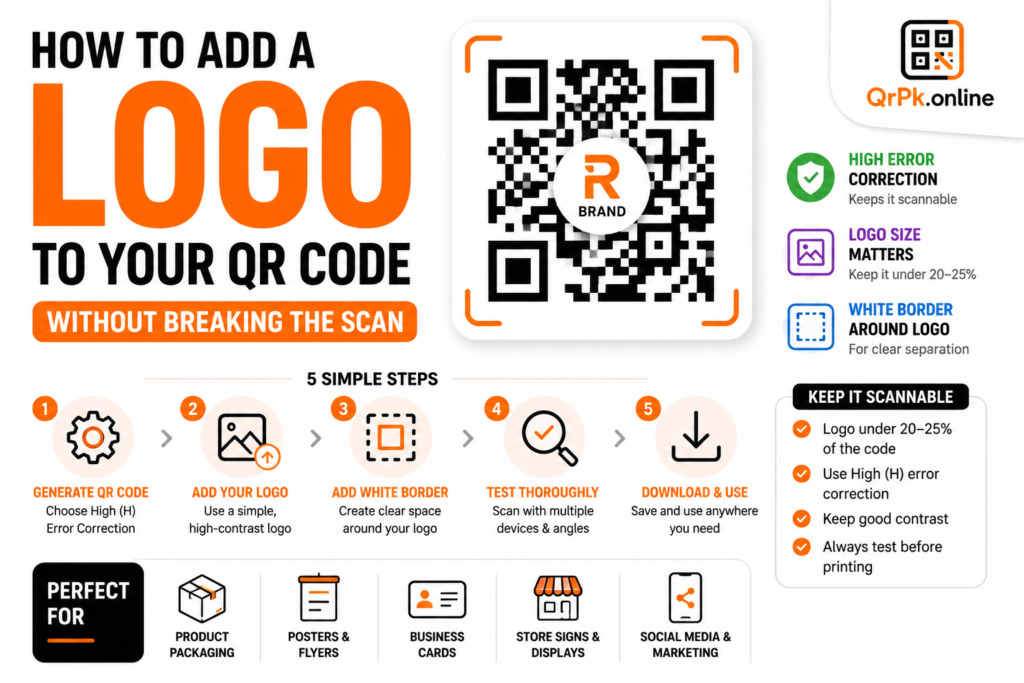
Also Read > How to Add a Logo to Your QR Code (Without Breaking the Scan)
Frequently Asked Questions
Is it free to make a QR code menu?
Yes. Generating the QR code itself is free, and hosting a menu as a Google Drive PDF or a simple webpage typically costs nothing as well.
Do customers need to download an app to scan a restaurant QR code?
No. Virtually all modern smartphones can scan a QR code directly using the built-in camera app, with no extra download required.
Can I update my menu without reprinting the QR code?
Yes, as long as your QR code links to an editable file or webpage rather than a fixed document. Update the content behind the link, and the same printed QR code continues working with the new menu.
What’s the best way to format a digital menu for QR scanning?
Use a mobile-friendly layout with clear sections, readable font sizes, and organized categories — avoid simply photographing or scanning your existing printed menu, since that’s often difficult to read on a small screen.
Final Thought
A QR code menu isn’t just a pandemic leftover — it’s a genuinely practical, low-cost upgrade that saves money on reprints and gives customers a cleaner, more flexible way to browse what you’re serving. Setting one up takes about ten minutes, and once it’s on your tables, updating your menu going forward becomes as simple as editing a file.
- How to Create a QR Code for JazzCash, Easypaisa, or Bank Transfer Payments
- How to Create a WhatsApp QR Code (Click-to-Chat, No Coding Needed)
- How to Create a QR Code Menu for Your Restaurant (Free, Step-by-Step)
- How to Add a Logo to Your QR Code (Without Breaking the Scan)
- Are QR Codes Safe? How to Spot a Fake or Malicious QR Code