Got a bunch of JPG or PNG images that you need to turn into a PDF?
You can convert them online in a couple of minutes. You don’t need to install PDF software or change complicated settings.
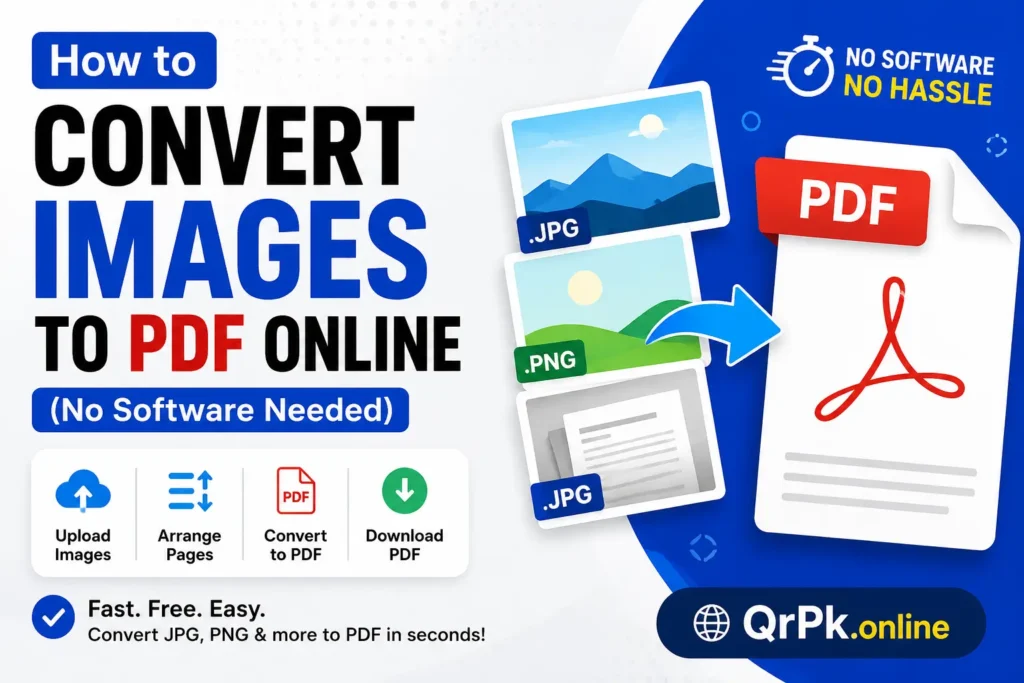
Upload your images, arrange them in the right order, convert them, and download the PDF.
Why convert images to PDF?
Images work well when you need to share a single picture. When you have 10, 20, or 50 images from the same document, keeping them as separate files gets annoying.
A PDF puts those pages into one file.
You might want to convert images to PDF for:
- Scanned documents
- Receipts and invoices
- School notes
- Application documents
- Photos of paperwork
- Screenshots
- Multiple pages that need to be shared together
A single PDF is also easier to upload when a website or application asks for a PDF file.
How to convert images to PDF online
You can convert JPG, PNG, and other supported image files directly from your browser.
Here’s how it works.
1. Open an image-to-PDF converter
Start with a free online Image to PDF Converter.
You can use a browser on your computer, phone, or tablet. There’s no software installation required.
2. Upload your images
Select the images you want to convert.
You can usually select several files at once. If you’re converting scanned pages, choose all the pages that belong in the PDF.
For example, if you photographed 8 pages of a document, upload all 8 images.
3. Arrange the images
Check the order of your images before converting them.
If page 1 comes after page 2, the finished PDF will have the same problem. Put the images in the order you want them to appear.
Some converters let you drag and rearrange the pages.
4. Convert the images to PDF
Once your images are ready, click the Convert to PDF button.
The converter combines your images into a PDF file.
The time required depends on the number and size of your images.
5. Download the PDF
Download the finished PDF and open it once before sending or uploading it.
Check that every page is included, the order is correct, and no image is rotated or cropped incorrectly.
That’s it.
How to convert JPG to PDF
JPG is one of the most common image formats, and most image-to-PDF converters support it.
The process is simple:
- Select your JPG images.
- Upload them to the converter.
- Arrange the images in the correct order.
- Convert them to PDF.
- Download the PDF.
If you have several JPG files, you can usually combine them into a single PDF instead of creating a separate PDF for each image.
Also Read > 10 creative ways to use QR codes in your restaurant
How to convert PNG to PDF
PNG images can also be converted to PDF when the converter supports PNG files.
This can be useful for screenshots, graphics, scanned pages, and other images saved as PNG files.
Upload the PNG images, arrange them, convert them, and download the resulting PDF.
Can multiple images be combined into one PDF?
Yes.
An image-to-PDF converter can combine multiple images into a single PDF document.
For example, if you have 15 photos of handwritten notes, you can put all 15 images into one PDF. Each image becomes a page in the document.
This makes the file easier to share, store, and upload.
What happens to image quality?
The quality of the PDF depends largely on the original images.
A blurry or poorly lit photo will still look blurry after conversion. Changing the file format doesn’t restore details that weren’t captured in the original image.
For scanned documents, try to take clear photos with enough light. Keep the entire page visible and avoid covering any part of the document.
Do you need to install software?
No.
An online image-to-PDF converter runs in your web browser, so you can convert images without installing a desktop PDF program.
This is useful when you’re using a shared computer, a phone, or a device where you don’t want to install additional software.
Is an online image-to-PDF converter free?
Many online image-to-PDF tools are available for free.
Limits can vary between tools. Some services may restrict the number of images, maximum file size, or certain features.
For a few normal JPG or PNG files, a free converter can be enough.
How to convert images to PDF on a phone
You can convert images to PDF from your smartphone using a web browser.
Open the image-to-PDF converter, select the pictures from your gallery, arrange them in the correct order, and start the conversion.
After the PDF is created, save it to your phone or share it with another app.
This is handy when you’ve photographed documents and need to turn them into a PDF without transferring the pictures to a computer first.
What to check before downloading your PDF
Take a few seconds to check the finished file.
Look at:
- Page order: Are the pages in the right sequence?
- Orientation: Is every page facing the correct direction?
- Readability: Can you read the text clearly?
- File size: Is the PDF small enough for the website or email you’re using?
- Completeness: Did every image appear in the PDF?
A quick check can prevent problems when you’re submitting or sharing the document.
Convert images to PDF online
If your images are ready, you can convert them with our free Image to PDF Converter.
Upload your JPG or PNG files, arrange the pages, convert them, and download your PDF.
You can do the whole process from your browser without installing software.
Frequently asked questions
What is the easiest way to convert images to PDF?
The easiest way is to use an online image-to-PDF converter. Upload your images, arrange them in the correct order, convert them, and download the PDF.
Can I convert multiple images into one PDF?
Yes. You can upload multiple supported images and combine them into a single PDF. Each image normally becomes a separate page.
Can I convert JPG and PNG images to PDF?
Yes, as long as the converter supports those image formats. JPG and PNG are commonly supported for image-to-PDF conversion.
Can I convert images to PDF on my phone?
Yes. You can use an online image-to-PDF converter from a mobile browser. Select images from your phone’s gallery, arrange them, and convert them to PDF.
Do I need software to convert images to PDF?
No. An online converter can handle the conversion through your web browser, so you don’t need to install a PDF application.
- How to Create a QR Code for JazzCash, Easypaisa, or Bank Transfer Payments
- How to Create a WhatsApp QR Code (Click-to-Chat, No Coding Needed)
- How to Create a QR Code Menu for Your Restaurant (Free, Step-by-Step)
- How to Add a Logo to Your QR Code (Without Breaking the Scan)
- Are QR Codes Safe? How to Spot a Fake or Malicious QR Code