Large image files can make websites slower, emails harder to send, and uploads take longer than they should.
The good news is that you can compress images online in a few clicks. The right settings can reduce the file size while keeping the image looking clear.
What does image compression do?
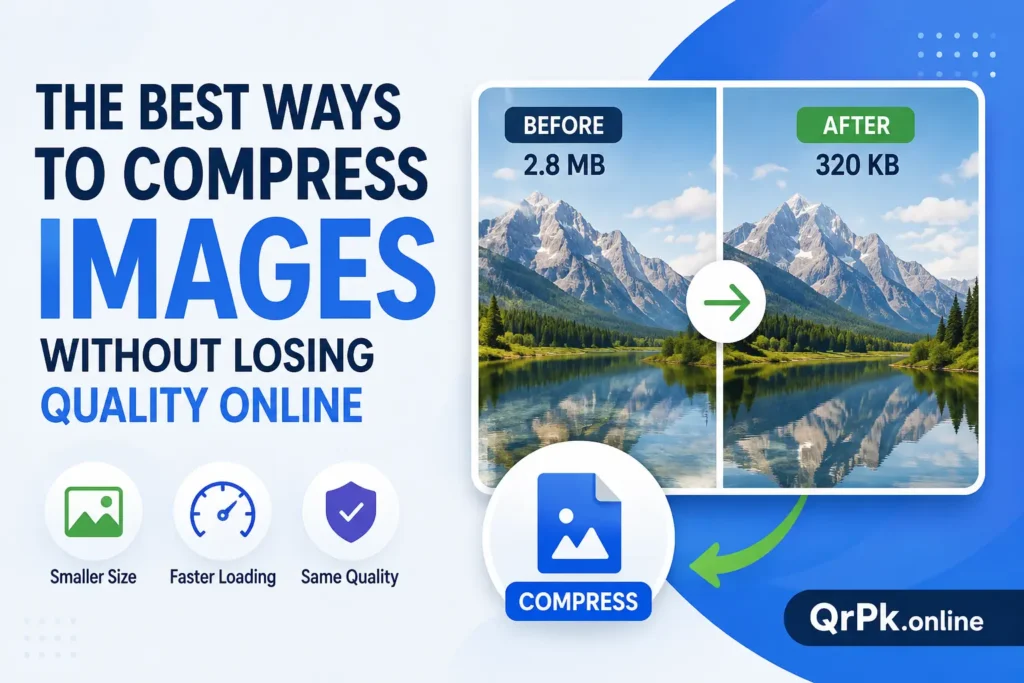
Image compression reduces the amount of data stored inside an image file.
A photo that takes up 5 MB, for example, might be reduced to 1 MB or less after compression. The exact result depends on the original image, its format, dimensions, and compression settings.
The goal is to make the file smaller while keeping enough visual detail for its intended use.
Why should you compress images?
Large images aren’t always necessary.
If you’re uploading a photo to a website, sending it by email, or sharing it online, a smaller file can be much easier to handle.
Image compression can help with:
- Faster website image loading
- Smaller email attachments
- Quicker file uploads
- Lower storage usage
- Easier image sharing
- Smaller files for online forms
For websites, properly sized images can also help pages load faster, especially for visitors using slower mobile connections.
How to compress images online
You don’t need an image editing program for basic compression.
An online image compressor can handle the process from your browser.
1. Choose an image compressor
Open an online image compression tool that supports your image format.
JPG and PNG are common formats, although some tools also support WebP and other formats.
2. Upload your image
Select the image you want to compress from your computer or phone.
If you’re working with several images, some online tools let you upload multiple files at once.
3. Let the tool compress the image
The compressor reduces the file size by removing or reducing some of the data stored in the image.
Depending on the tool, you may be able to choose a compression level or quality setting.
A moderate setting is usually a good place to start.
4. Check the result
Open the compressed image and compare it with the original.
Look closely at text, small details, edges, and areas with lots of texture. If the image still looks good, you’ve probably found a useful balance between quality and file size.
5. Download the compressed image
Once you’re happy with the result, download the smaller file.
You can then upload it to your website, attach it to an email, or use it wherever you need it.
How to compress images without losing quality
Technically, compression can involve some loss of image data. The trick is keeping that loss small enough that you don’t notice it.
Start with a good-quality original image.
Then use moderate compression instead of pushing the file size as low as possible. A tiny file isn’t useful if the image becomes blurry or shows visible artifacts.
The best result is usually the smallest file that still looks good at its actual display size.
Resize the image before compressing it
Image dimensions have a big effect on file size.
A photo that’s 5000 pixels wide may be much larger than you need for a website that displays it at 1200 pixels wide.
If the image will only appear at a smaller size, resize it first. Then compress the resized version.
For example, there’s little reason to upload a huge camera photo when the website only needs a much smaller version.
Choose the right image format
The image format matters.
JPG works well for photographs and images with lots of colors.
PNG is useful for graphics, screenshots, and images where you need transparency or very sharp edges.
WebP can produce smaller files for many web images while keeping good visual quality.
There’s no single format that’s best for every image. Look at the type of image and where you’re going to use it.
JPG compression
JPG is a good choice for many photographs.
It uses lossy compression, which means some image data is removed when the file is compressed. With a reasonable quality setting, the difference can be difficult to notice while the file becomes much smaller.
Avoid repeatedly opening, editing, and saving the same JPG at lower quality. Each new save can introduce additional compression.
PNG compression
PNG uses a different compression method and can work well for screenshots, logos, illustrations, and images with transparent backgrounds.
PNG files can sometimes be much larger than JPG files when used for photographs.
If you have a photographic image saved as PNG and don’t need transparency, converting it to JPG may reduce the file size considerably.
How much should you compress an image?
There’s no single percentage that works for every image.
A website thumbnail might look perfectly fine after a strong reduction in file size. A detailed photograph that will be viewed closely may need a higher quality setting.
Start with moderate compression and check the result.
For website images, also consider the dimensions. Compressing a 4000-pixel image doesn’t solve the problem if you only need a 1000-pixel version.
Also Read > How to Convert Images to PDF Online (No Software Needed)
Can you compress images on your phone?
Yes.
Most online image compressors work through a mobile browser. You can select an image from your gallery, upload it, compress it, and download the smaller version.
This is useful when you’re preparing photos for an online form, email, website, or social media post directly from your phone.
Does compressing an image reduce its quality?
It can.
Lossy compression removes some image information to reduce the file size. At a reasonable compression level, the visual difference may be very small.
Lossless compression works differently. It reduces the file size without removing image information, although the reduction is usually smaller.
If image quality is especially important, compare the original and compressed versions before using the new file.
How to reduce image size for a website
Start by checking the dimensions of the image.
If your website only displays an image at 1000 pixels wide, uploading a 4000-pixel version creates unnecessary data.
Resize the image to a suitable dimension, choose an appropriate format, and then compress it.
Also remember that different images need different settings. A large photograph, a logo, and a screenshot won’t necessarily compress equally well.
Compress images online for free
If you only need to reduce the size of a few images, an online compressor can save you from installing image editing software.
Upload the image, choose the available compression settings, check the result, and download the smaller file.
The whole process can take less than a minute for a small image.
And if you’re preparing compressed images for a document, you can later combine them into a PDF with our free Image to PDF Converter.
Tips for keeping good image quality
A few simple habits can make a noticeable difference.
- Keep the original image before compressing it.
- Resize oversized images before uploading them.
- Use JPG for many photographs.
- Use PNG when transparency or sharp graphics matter.
- Try moderate compression first.
- Compare the compressed file with the original.
- Check the final image at the size where people will actually see it.
You don’t have to chase the smallest possible file. The useful target is a file that’s small enough for its purpose and still looks good.
Frequently asked questions
What is the best way to compress an image online?
The easiest method is to use an online image compressor. Upload the image, choose a suitable compression level, check the result, and download the smaller file.
How can I compress an image without losing visible quality?
Use moderate compression and start with a high-quality original. Resizing an oversized image before compression can also reduce the file size without making the final image look poor.
Does compressing JPG reduce quality?
JPG compression can reduce image quality because it removes some image data. A reasonable quality setting can keep the visual difference small while reducing the file size.
Which image format is best for a small file size?
It depends on the image. JPG is often a good choice for photographs, while PNG works well for graphics and images that need transparency. WebP can also produce small files for many web images.
Can I compress images on my phone?
Yes. You can use an online image compressor through your phone’s browser. Select the image from your gallery, compress it, and download the smaller version.
- How to Create a QR Code for JazzCash, Easypaisa, or Bank Transfer Payments
- How to Create a WhatsApp QR Code (Click-to-Chat, No Coding Needed)
- How to Create a QR Code Menu for Your Restaurant (Free, Step-by-Step)
- How to Add a Logo to Your QR Code (Without Breaking the Scan)
- Are QR Codes Safe? How to Spot a Fake or Malicious QR Code