Quick answer: To create a QR code for your Instagram profile, copy your Instagram profile link (instagram.com/yourusername), paste it into a free QR code generator, and download the image. Anyone who scans it will be taken straight to your profile — no typing, no searching required.
That’s the whole process in one sentence. But there are a few small details that make the difference between a QR code that just “works” and one that actually helps you gain followers, so let’s go through it properly.
Why Bother With an Instagram QR Code at All?
Instagram already has a built-in QR code inside the app (you’ll find it under your profile menu), and that one works fine for quick phone-to-phone follows in person. But it has a real limitation: it only works if the other person opens their Instagram app’s built-in scanner specifically. It won’t scan properly with a regular phone camera the way a normal QR code does.
A regular, browser-generated QR code fixes this. It scans with any phone camera, works from printed materials, business cards, packaging, posters, or even a laptop screen, and takes people directly to your profile without needing the Instagram app open first.
This matters more than it sounds like. Think about where people might actually encounter your Instagram handle:
- On a printed flyer or poster for an event or shop
- On product packaging
- On a business card
- On a presentation slide
- On a table tent at a restaurant or café
- On a storefront window sticker
In every one of these situations, someone typing out your handle manually is far less likely to actually follow you than someone who can just scan a code with their default camera and land directly on your profile in two seconds.
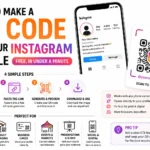
Step-by-Step: Creating Your Instagram QR Code
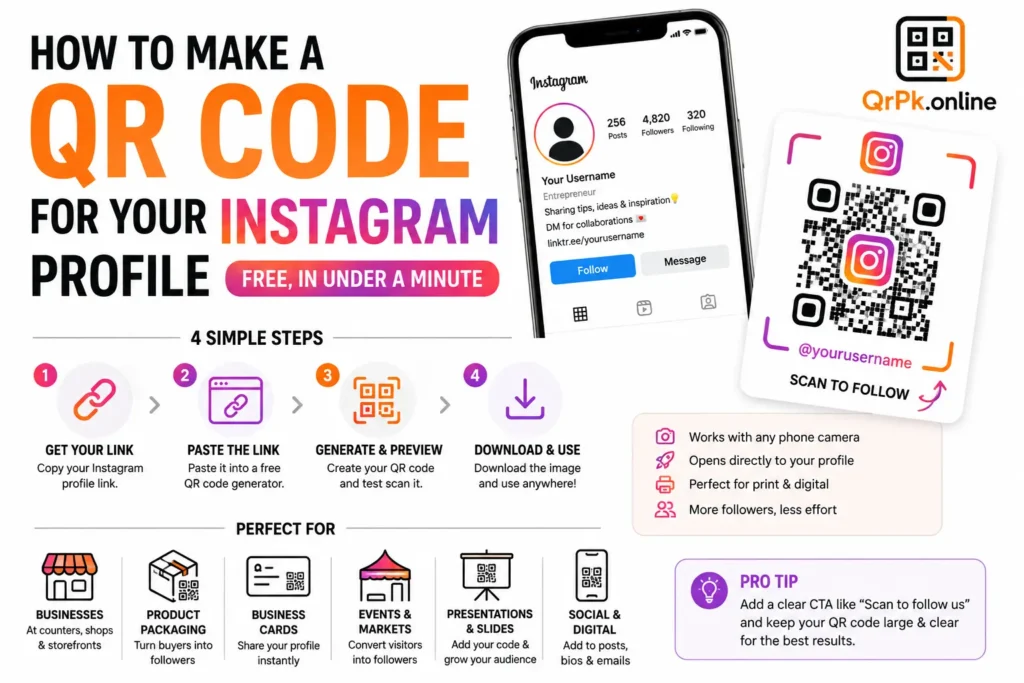
Step 1: Get your Instagram profile link. Open Instagram, go to your profile, tap the three-line menu, and look for “Share Profile” or “Copy Link.” This gives you a URL that looks like https://instagram.com/yourusername. Alternatively, you can just manually type it out, replacing “yourusername” with your actual handle.
Step 2: Paste it into a free QR code generator. Head to a free QR code generator and paste your Instagram profile link into the input field.
Step 3: Generate and preview the code. The tool will instantly create a scannable QR code. Before downloading, it’s worth quickly scanning it yourself with your phone to confirm it lands on the correct profile — a small check that saves you from printing a broken code on hundreds of flyers.
Step 4: Download and use it. Download the QR code as an image file and place it wherever you need — printed materials, digital posts, email signatures, or packaging.
Where to Actually Use It for the Best Results
On printed materials at your business. If you run a café, salon, shop, or any physical location, placing your Instagram QR code near the counter or entrance with a simple “Follow us for updates & offers” line converts a lot better than expecting people to search your handle manually.
On product packaging. For anyone selling physical products, a small QR code on the packaging turns a one-time buyer into a follower who sees your future posts, promotions, and new products.
On business cards. Alongside your contact details, a QR code linking to Instagram lets people casually check out your work or brand without needing to remember to search for you later — a moment that’s easy to lose otherwise.
At events, pop-ups, or markets. A simple table sign with a QR code is a low-effort way to convert foot traffic into online followers, especially in busy environments where people won’t stop to type out a handle.
A Few Tips to Get More Actual Follows (Not Just Scans)
- Add a short, clear call-to-action next to the code, like “Scan to follow us” — a code with no context gets ignored far more often.
- Keep the code reasonably large when printed. A QR code smaller than about 2 x 2 cm can be difficult for phone cameras to focus on and scan reliably.
- Test the code yourself after printing, not just after generating it digitally — printing quality and paper texture can occasionally affect scan reliability.
- If you plan to change your Instagram handle later, keep this in mind, since a static QR code will stop working correctly if your profile URL changes.
Also Read > Static vs Dynamic QR Code: What’s the Difference and Which One Should You Use?
Frequently Asked Questions
Is it free to make a QR code for Instagram?
Yes. Generating a QR code for any link, including your Instagram profile, is completely free using an online QR code generator — no account or payment needed.
Will my Instagram QR code stop working if I change my username?
Yes, if you generated a static QR code linked to your old profile URL, changing your username will break the link. If you plan to change your handle in the future, consider regenerating the code afterward.
Can I customize the QR code’s color or add my logo?
Many free QR code generators allow basic customization like color changes, and some support adding a small logo in the center, as long as the core scanning pattern stays intact and high-contrast.
Does scanning an Instagram QR code require the Instagram app?
No, a QR code generated this way opens through your phone’s regular camera or browser and takes you directly to the profile page — Instagram will prompt you to open the app if it’s installed, but it isn’t required just to view the profile.
Final Thought
An Instagram QR code is one of those tiny details that quietly makes a real difference — it removes every bit of friction between someone seeing your brand and actually following it. It takes under a minute to set up and works anywhere a phone camera can point, from a printed flyer to a product label.
- How to Create a QR Code for JazzCash, Easypaisa, or Bank Transfer Payments
- How to Create a WhatsApp QR Code (Click-to-Chat, No Coding Needed)
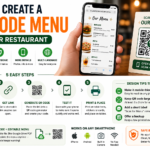
- How to Create a QR Code Menu for Your Restaurant (Free, Step-by-Step)
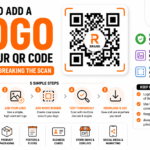
- How to Add a Logo to Your QR Code (Without Breaking the Scan)
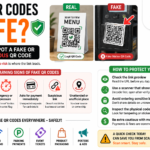
- Are QR Codes Safe? How to Spot a Fake or Malicious QR Code
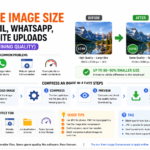
- How to Reduce Image Size for Email, WhatsApp, or Website Uploads (Without Ruining Quality)
- How to Make a QR Code for Your Instagram Profile (Free, in Under a Minute)
- Static vs Dynamic QR Code: What’s the Difference and Which One Should You Use?