QR codes are everywhere now — on restaurant tables, product packaging, event tickets, payment counters, even on the back of shampoo bottles. But here’s a question that trips up more people than you’d think: do you actually need a separate app to scan one? The short answer is usually no, but the full answer is a little more interesting, and worth understanding so you’re not stuck fumbling with your phone the next time a code is sitting right in front of you.
The Simplest Way: Your Phone’s Built-In Camera
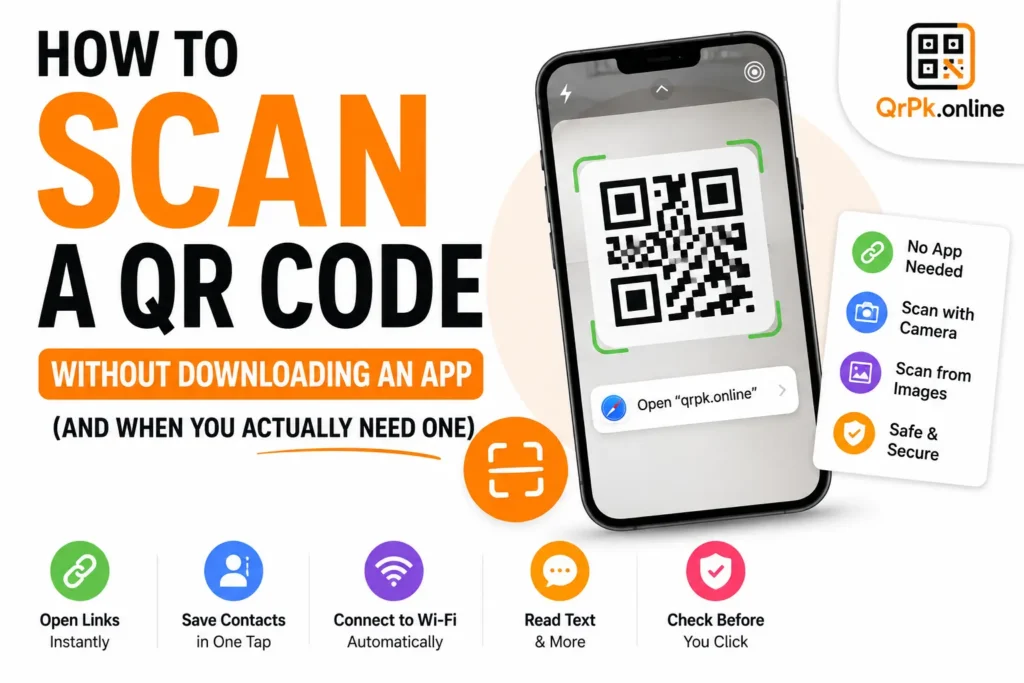
If you’re using a phone made in the last several years, chances are your camera app can already scan QR codes without any extra download. On iPhones, you simply open the Camera app, point it at the code, and a notification banner pops up at the top of the screen — tap it, and you’re taken straight to the link, contact card, or Wi-Fi network the code was made for. No separate scanner app needed.
On most modern Android phones, the same thing works either directly through the camera app or through Google Lens, which is often built into the camera interface as a small icon you can tap. Point, focus, tap the link — done.
This built-in method works fine for casual, one-off scans, like checking a restaurant menu or connecting to Wi-Fi at a café. But it does have limits, which is where a dedicated scanner tool becomes genuinely useful.
When a Dedicated QR Scanner Actually Helps
1. Older phones or cameras that don’t auto-detect codes. Not every phone has built-in QR recognition, especially older or budget devices. If pointing your camera at a code does nothing, a browser-based or app-based scanner fills that gap without needing special hardware support.
2. Scanning from a screen instead of a physical surface. Sometimes you need to scan a code that’s displayed on another screen — a laptop, a poster on a projector, or a code sent to you in an image. Built-in camera scanning can struggle with glare or screen refresh flicker, while a dedicated scanning tool is often more reliable for this.
3. Scanning an image file instead of a live camera. This is one people don’t think about until they need it. Say someone emails you a QR code as an image, or you have a screenshot saved on your phone — you can’t exactly point your camera at your own screen easily. A proper QR code scanner tool usually lets you upload the image file directly and decode it instantly, without needing to physically photograph anything.
4. Getting more detail about what the code actually contains. Your phone’s default scanner usually just opens the link automatically. But sometimes you want to actually see the raw data before clicking anything — especially useful if you’re cautious about where a link leads, or if the code contains something other than a website, like plain text, contact information, or Wi-Fi credentials.
5. Business or bulk use cases. If you’re checking in guests at an event, verifying tickets, or scanning multiple codes quickly in a work setting, a dedicated scanner interface designed for speed and repetition is far more practical than relying on your camera app one scan at a time.
A Quick Word on QR Code Safety
QR codes have become a popular target for scams in recent years — fake codes stuck over real ones on parking meters, fraudulent payment codes, or codes leading to phishing pages disguised as login screens. A little bit of caution goes a long way:
- Before scanning, glance at the code itself. If it looks like a sticker placed crudely over another code, be suspicious.
- After scanning, check the link preview before tapping through, if your scanner shows one. Look for misspelled domain names or unfamiliar URLs.
- Avoid entering sensitive information like passwords or card details on a page you reached through a QR code unless you’re confident about the source.
- For payment-related QR codes especially, double-check the destination matches the business you expect.
This is one of the underrated benefits of using a scanner that shows you the decoded content before opening it automatically — you get a chance to sanity-check the link first.
What Kinds of Data Can a QR Code Actually Hold?
People often assume QR codes only lead to websites, but they can actually encode several different types of information:
- URLs — the most common use, linking to websites, menus, or landing pages.
- Plain text — a short message or note, no internet connection required to read it.
- Contact information (vCard) — scan it and your phone offers to save a new contact directly.
- Wi-Fi credentials — scan and connect automatically without typing a password.
- Email or SMS shortcuts — pre-filled messages ready to send with one tap.
Knowing this helps explain why a good scanner does more than just “open a link” — it needs to correctly interpret whatever type of data is actually stored inside the code.
Try It Without Any Setup
If you want a fast, no-installation way to scan or decode a QR code — whether from your camera or an uploaded image — our free QR code scanner works directly in your browser. No app store, no permissions to manage, just point, scan, and go.
Frequently Asked Questions
Do I need an app to scan QR codes on my phone?
Usually not. Most modern phones can scan QR codes directly through the built-in camera app. A dedicated scanner is mainly useful for image uploads, older devices, or more detailed decoding.
Can I scan a QR code from a photo already saved on my phone?
Yes, but your default camera app typically can’t do this — you’ll need a scanner tool that supports uploading an image file directly rather than requiring a live camera view.
Are QR codes safe to scan?
Generally yes, but like any link, it’s worth checking the destination before entering personal information, especially for codes found in public or unfamiliar places.
Why won’t my camera detect a QR code?
This can happen due to poor lighting, glare, a damaged or low-contrast code, or simply a phone that doesn’t have built-in QR recognition. Switching to a dedicated scanner tool usually solves it.
Final Thought
Scanning a QR code should be effortless, and most of the time it is — until it isn’t, and you’re stuck squinting at your camera wondering why nothing’s happening. Knowing the alternatives, and having a reliable scanner tool on hand for the trickier cases, means you’re never actually stuck the next time a code doesn’t cooperate.
- How to Create a QR Code for JazzCash, Easypaisa, or Bank Transfer Payments

- How to Create a WhatsApp QR Code (Click-to-Chat, No Coding Needed)

- How to Create a QR Code Menu for Your Restaurant (Free, Step-by-Step)
- How to Add a Logo to Your QR Code (Without Breaking the Scan)
- Are QR Codes Safe? How to Spot a Fake or Malicious QR Code
- How to Reduce Image Size for Email, WhatsApp, or Website Uploads (Without Ruining Quality)
- How to Make a QR Code for Your Instagram Profile (Free, in Under a Minute)
- Static vs Dynamic QR Code: What’s the Difference and Which One Should You Use?