You know that awkward moment when a guest comes over and asks, “Hey, what’s your WiFi password?” And then you either have to spell out some random combination like “Tr0ub4dor@2024” letter by letter, or walk over to the router to check the sticker on the back. It’s a small thing, but it’s annoying every single time.
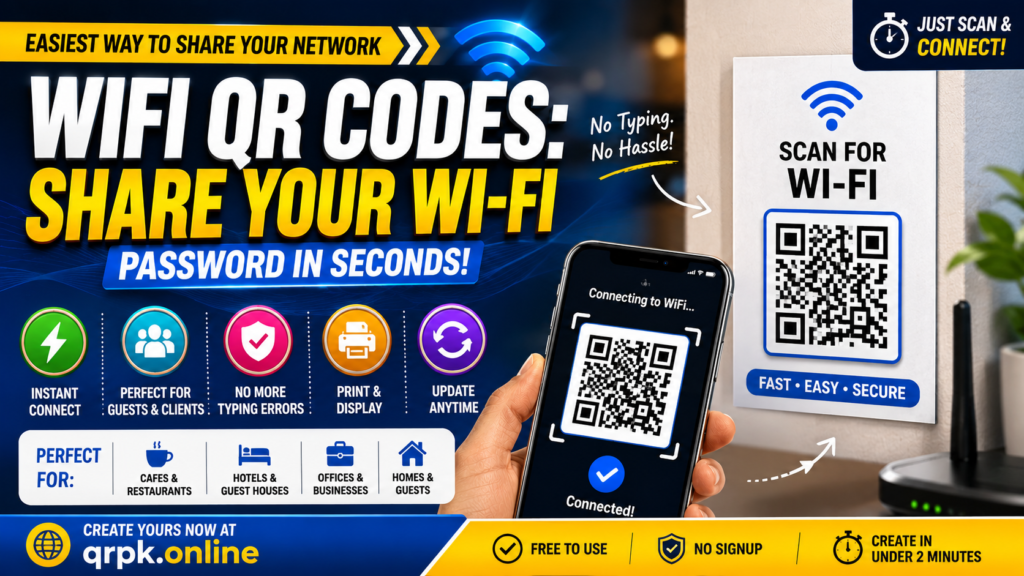
I got tired of repeating my WiFi password to every guest, every delivery guy, every relative who visits, so I started using a WiFi QR code instead. Now I just stick it on the wall near my router, and anyone who wants to connect simply scans it with their phone camera. No typing, no spelling mistakes, no “wait, was that a zero or the letter O?” confusion.
In this article, I’ll show you exactly what a WiFi QR code is, why it’s useful, and how you can make one yourself in just a couple of minutes.
What Is a WiFi QR Code?
A WiFi QR code is a small scannable code that stores your network name (SSID) and password inside it. When someone scans it with their phone camera, their device automatically connects to the WiFi — no manual typing needed.
It works because the code contains your network’s security type, name, and password, all packed into that little black-and-white square. The phone reads this information and does the connecting for you.
Why You Should Use a WiFi QR Code
Let’s compare the old way of sharing WiFi with the QR code way:
| Situation | Typing the Password | Scanning a QR Code |
|---|---|---|
| Long or complex password | Easy to make typing mistakes | No typing at all |
| New guests every week | Have to repeat password often | Just scan and connect |
| Business or cafe WiFi | Staff has to tell customers manually | Customers scan and connect themselves |
| Password with special characters | Confusing to say out loud | Doesn’t matter, it’s automatic |
| Changing WiFi password | Need to inform everyone again | Just generate a new code |
If you run a cafe, guest house, office, or even just have people over often, this small change saves everyone a lot of back-and-forth.
Where People Use WiFi QR Codes
WiFi QR codes aren’t just for homes. Here are some common places you’ll see them:
- Cafes and restaurants – printed on table tents or menus so customers connect instantly
- Hotels and guest houses – placed in rooms so guests don’t need to ask reception
- Offices – for visitors who need internet access without asking IT for the password
- Airbnb listings – hosts often leave a QR code sticker for guests
- Homes – stuck near the router or on the fridge for family and friends
How to Create a WiFi QR Code (Step-by-Step)
Here’s exactly how you can make one for yourself.
Step 1: Gather Your WiFi Details
Before you start, keep this information ready:
- Network name (SSID) — exactly as it appears in your WiFi settings
- WiFi password
- Security type (usually WPA/WPA2, which is what most home routers use)
Step 2: Use a WiFi QR Code Generator
The easiest way is to use a free tool like the WiFi QR Card Maker on qrpk.online. You just enter your network name and password, pick the security type, and your QR code is generated instantly — no signup required.
Step 3: Customize It (Optional)
You can make it look nicer by:
- Adding your brand colors (great for cafes or offices)
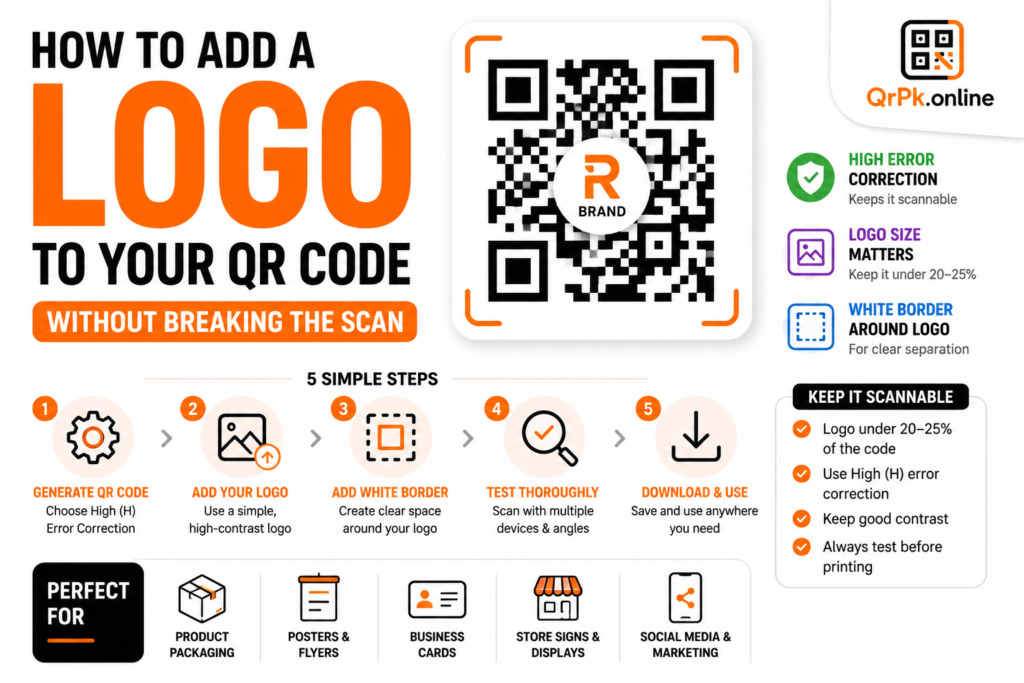
- Adding a small logo in the middle
- Adding a label like “Scan for WiFi” so people know what it’s for
Step 4: Test It Before Printing
Scan the code yourself with a phone to make sure it actually connects. It’s a quick step, but it saves you from printing a code that doesn’t work.
Step 5: Print and Display It
Print the code and place it somewhere visible — near your router, on your wall, at the front desk, or on your dining table. A size of at least 3cm x 3cm works well for easy scanning.
Also Read > How to Create a QR Code for Your Business Card (Step-by-Step Guide)
Common Mistakes to Avoid
| Mistake | Why It’s a Problem |
|---|---|
| Wrong security type selected | Phones won’t be able to connect |
| Typos in the password | Code will generate but won’t work |
| Printing it too small | Hard for phones to scan from a distance |
| Not updating the code after changing the password | Old code will keep failing |
If you ever change your WiFi password, remember to generate a fresh QR code and replace the old one — otherwise it’ll stop working and just confuse your guests.
Is It Safe to Use a WiFi QR Code?
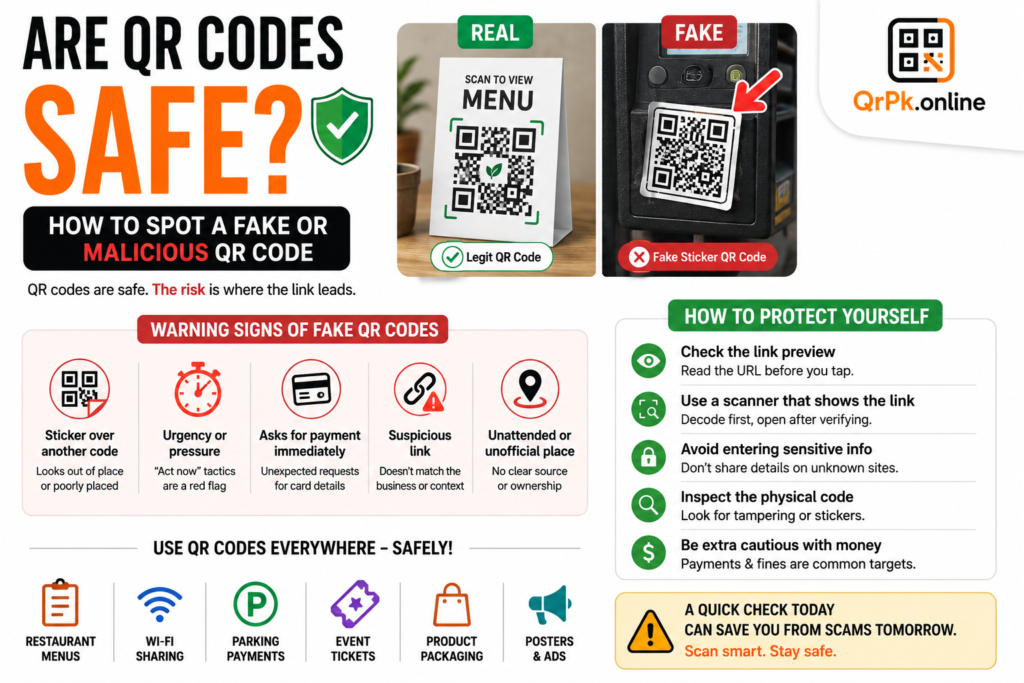
This is a fair question. A WiFi QR code is just as safe as your regular password — the code isn’t sending your password anywhere online, it simply stores it so your phone camera can read it and connect automatically. The main thing to be careful about is where you display it. If it’s for personal use, keep it somewhere only your guests can see, not posted publicly where strangers could scan it too.
Final Thoughts
A WiFi QR code is one of those small upgrades that makes a real difference. It saves time, avoids typing mistakes, and makes your home, cafe, or office feel a lot more modern and guest-friendly. Making one takes less than two minutes with a tool like the WiFi QR Card Maker, so there’s really no reason not to try it.
Next time someone asks for your WiFi password, just point them to the QR code on your wall instead.
Frequently Asked Questions
1. Do I need an app to scan a WiFi QR code?
No. Most modern phones (iPhone and Android) can scan QR codes directly from the built-in camera app. You just point the camera at the code, and a notification pops up to connect to the WiFi.
2. Will a WiFi QR code work if I change my password later?
No, once the password changes, the old QR code stops working. You’ll need to generate a new QR code with the updated password and replace the old one.
3. Can a WiFi QR code be used on both iPhone and Android?
Yes, WiFi QR codes work on both iPhone and Android. Most recent phone models support scanning and connecting to WiFi directly through the camera app.
4. Is it safe to share a WiFi QR code publicly?
It depends on where you place it. For home use, keep it visible only to guests you trust. For businesses like cafes, it’s usually fine to display it publicly since it’s meant for customer use.
5. Can I make a WiFi QR code for free?
Yes, you can create one for free using a tool like the WiFi QR Card Maker on qrpk.online. It doesn’t require any signup or payment.
- How to Create a QR Code for JazzCash, Easypaisa, or Bank Transfer Payments
- How to Create a WhatsApp QR Code (Click-to-Chat, No Coding Needed)

- How to Create a QR Code Menu for Your Restaurant (Free, Step-by-Step)
- How to Add a Logo to Your QR Code (Without Breaking the Scan)
- Are QR Codes Safe? How to Spot a Fake or Malicious QR Code